
With an accepted Funding Agreement secured, Recipients can create any reports or projects required in the Reporting stage.
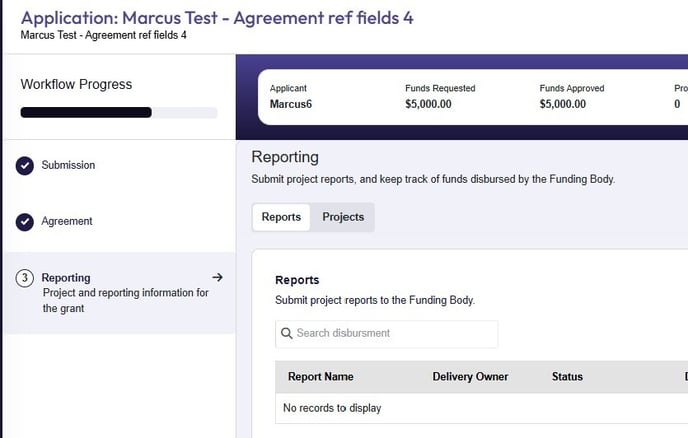
Here, Recipients can create and/or complete reports and projects, as well as view any Funding Body-completed disbursements of funds.
Creating a report
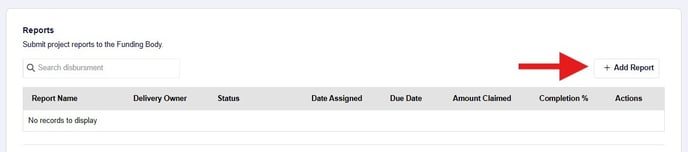
On the Reporting stage, if Recipients need to send updates of their progress with outputs for the funding, they select + Add Report.
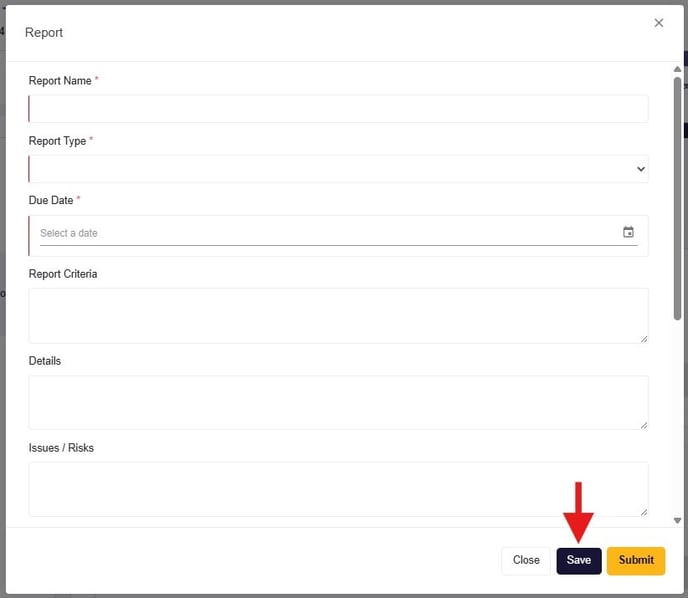
The Report window shows a number of required and optional input fields which can meet the needs of the Funding Body. With the minimum required fields input, selecting the Save button allows a Recipient to save the report for additional updates in future without submitting to the Funding Body.
💡TIP: If the fields in the Report window don't meet the needs of the Funding Body, the Supporting Documents section allows for additional documents/files to be added.
🚩NOTE: The Funding Body is able to create a report for Recipients too; the minimum fields required are Report Name, Report Type and Due Date. Funding Bodies can update the report content up until the Recipient saves or submits the report.
Submitting a report
Once the Report contains all necessary information and documents, select Submit button to make the report content visible to the Funding Body.
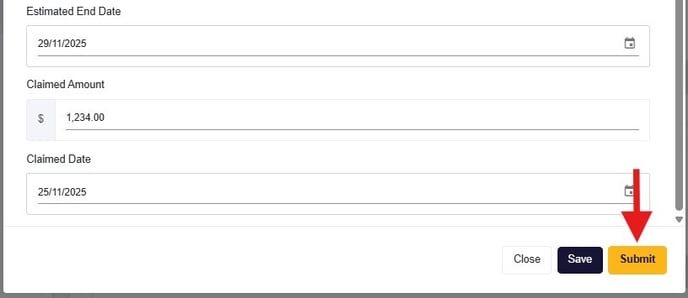
🚩NOTE: Once a report is submitted, it cannot be changed.
Creating and submitting a project
In the same way as creating and submitting a Report, to create a Project:
- On the Reporting stage, select Projects tab
- Select the + symbol
- Enter all relevant details to the Project window
- Select Save Changes to commit the details
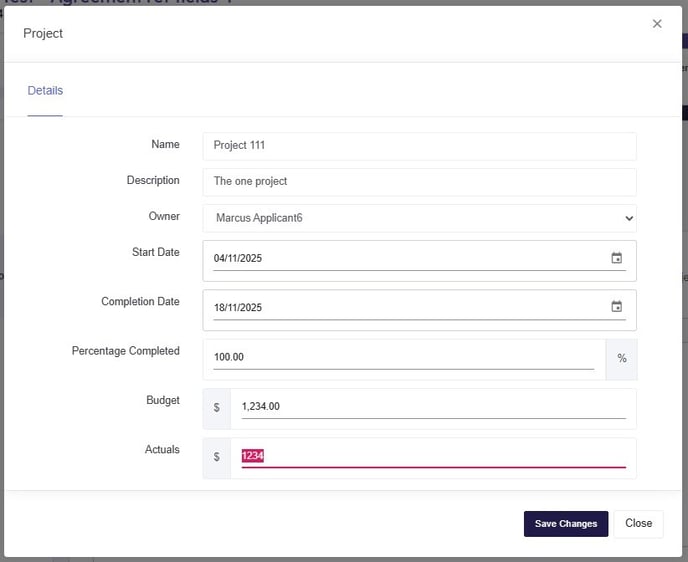
🚩NOTE: Once Save Changes is selected, the project fields cannot be updated and the Funding Body can now see the details.